
Create an Email Server on Windows WAMP
A local email server is an email server that is installed on a local machine and is responsible for the delivery of emails using common email protocols like SMTP, IMAP and POP3. Learn in this post how to set up an email server on WAMP and integrate a webmail interface.
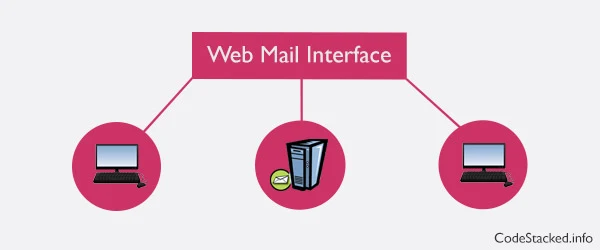
In this post, we will install an email server as well as a webmail client. We will install hMailServer as a Windows SMTP server to manage email delivery and Roundcube as a webmail client interface. Before we begin, we will need to download the email server and webmail interface from the following links:
hMailServer is an open source, free email server for Microsoft Windows with support for IMAP, POP3, and SMTP, which handles the mail delivery on a local machine. It comes with additional sound features that an email server should have.
Roundcube is an open source webmail client written in PHP that uses AJAX on the client side. Which means it requires JavaScript to be enabled on the client browser. It comes with many UI skins, multi-language support, and a lot more.
Firstly, we need to enter two host entries in the V-Hosts file of WAMP. First one for the main domain and the second one for the webmail interface. The file can be found at the following location on Windows. For more details on how to set up these virtual hosts, give How to Create a Subdomain on WAMP a read.
C:\wamp\bin\apache\Apache2.2.11\conf\extra\
<VirtualHost *:80>
    DocumentRoot "c:/wamp/www"
    ServerName test-domain.com
    ServerAlias www.test-domain.com
</VirtualHost>
<VirtualHost *:80>
    DocumentRoot "c:/wamp/www/roundcube"
    ServerName mail.test-domain.com
    ServerAlias www.mail.test-domain.com
</VirtualHost>
We will need to add an entry to the Windows
hosts file for the above virtual hosts. The Windows' hosts file can be found
in c:\windows\system32\drivers\etc\ on Windows.
Assuming you know how to install WAMP and get it running. I am going to show you the rest of the two steps: the hMailServer installation and configuration, and the Roundcube webmail interface setup. After you have downloaded both, follow these steps to install hMailServer.
Install & Configure hMailServer on Windows
- Run the setup of hMailServer you downloaded.
- Click "Next".
- Click the checkbox "I accept the agreement" and click "Next".
- Set the destination folder where you want to install hMailServer and click "Next".
- We need both components, so check both available components and click "Next".
- Click the checkbox "User built-in database engine" and click "Next".
- Click "Next".
- Set the password, you will need this password to connect to the server. Click "Next".
- After all of the above steps, click "Install" to continue installing hMailServer.
1. On the welcome screen, click "Domains" on the left side navigation panel and then click on "Add" from the top right buttons.

2. Enter a domain name of your choice; I am using
test-domain.com for this post. Click Save.
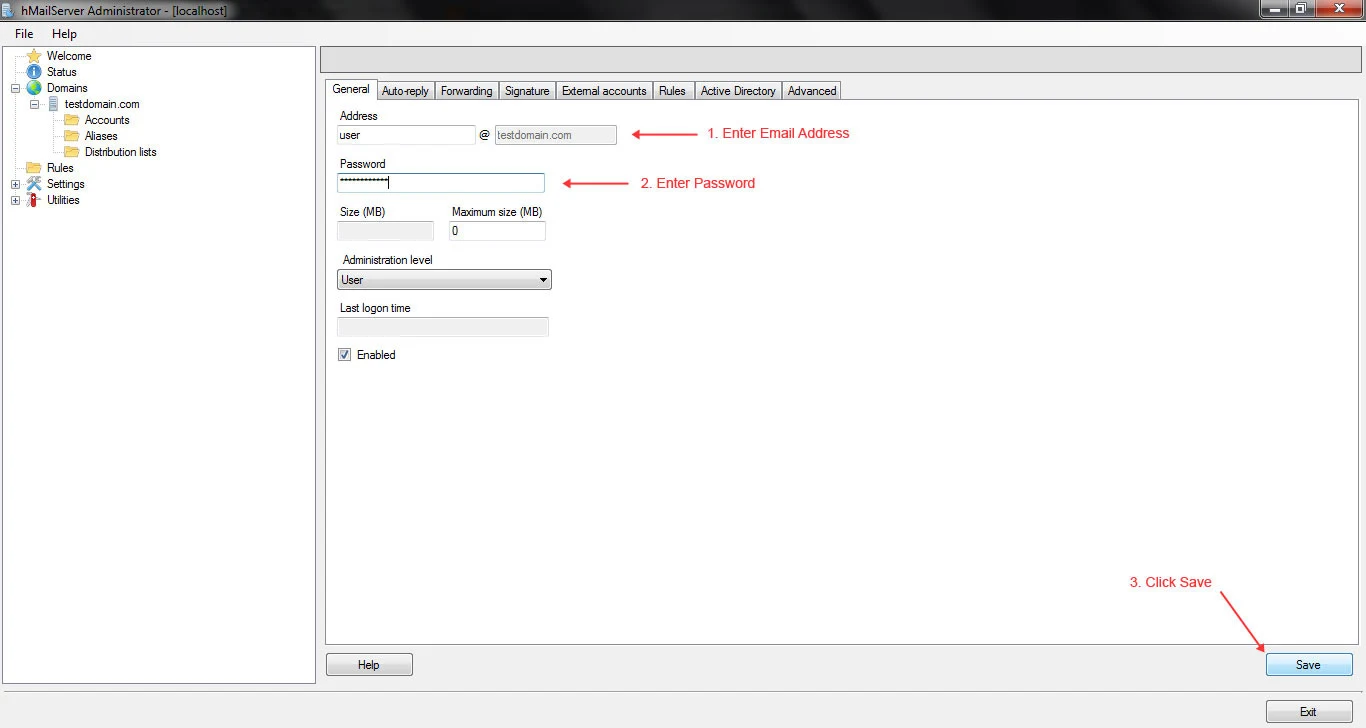
3. Click Accounts on the left side navigation panel and then click "Add" on the top right buttons.

4. Enter the email address and password for the account and then click "Save".
Configure Roundcube on Windows
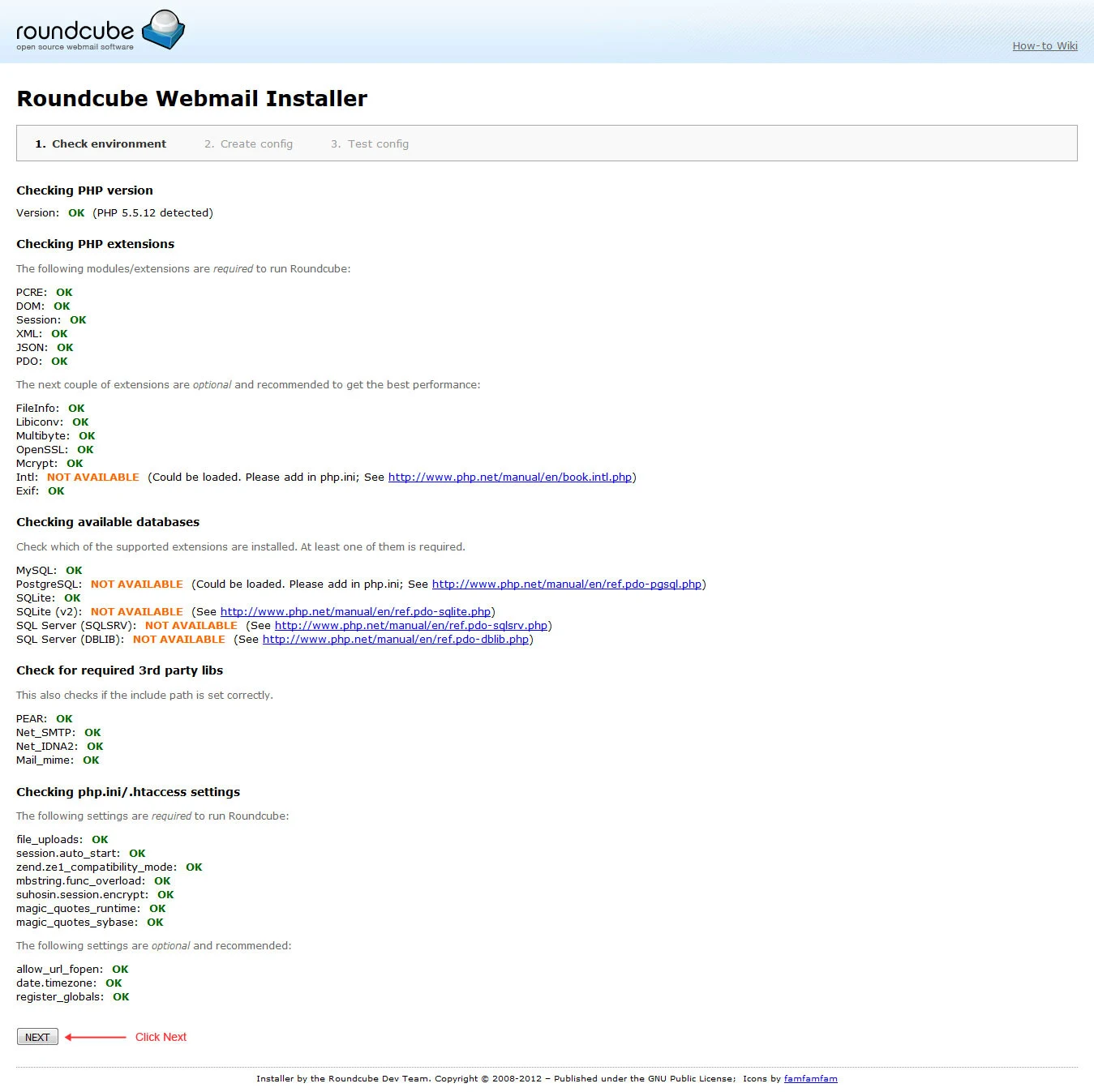
1. Create a directoryroundcube inside www and extract the Roundcube files you have downloaded to this directory.2. Open a browser and enter
localhost/roundcube/installer URL.3. On the first screen, you will see the status of the environment. Normally, it should show an OK status for all configurations at this step; you just have to click "Next".
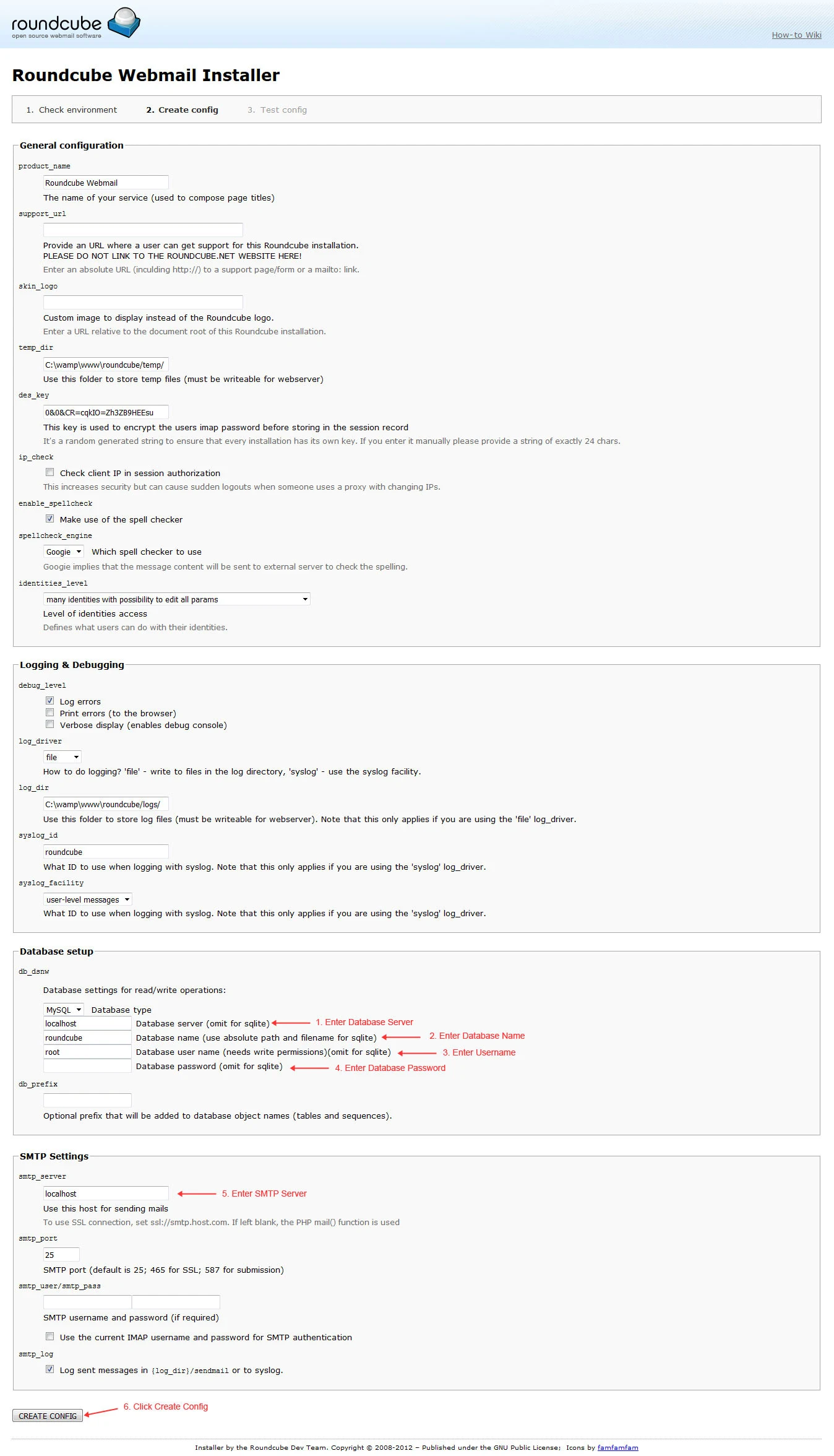
4. On the following step page, you do not have to change anything; just enter the database host, database name, username for the database, and password in the "Database Setup" section. Also, enter the host for the SMTP server in the "SMTP Settings" section. Click "Create Config".
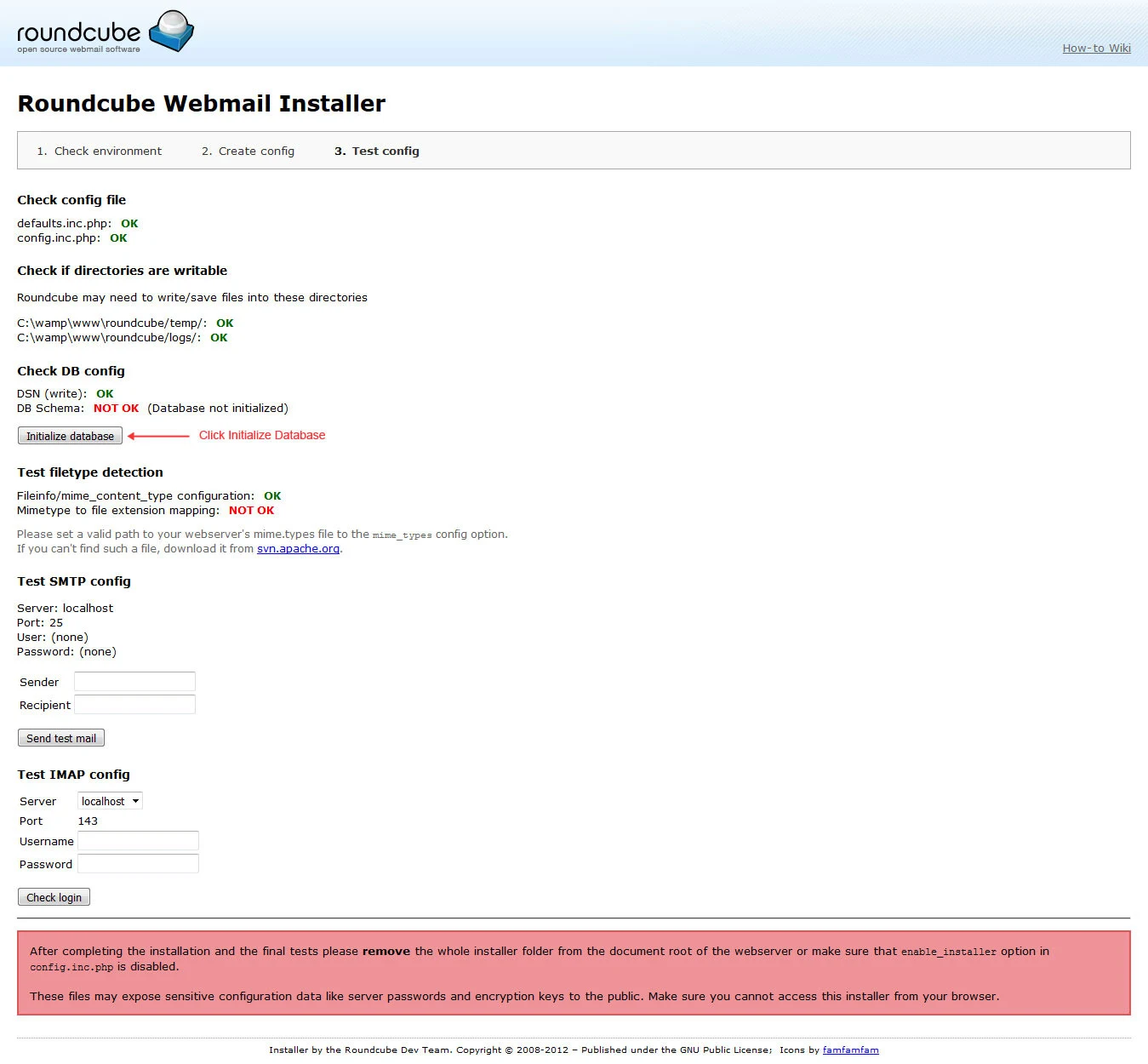
5. This is the final step; you will see the "Test Config" page. Click the button "Initialize Database", and all is done.
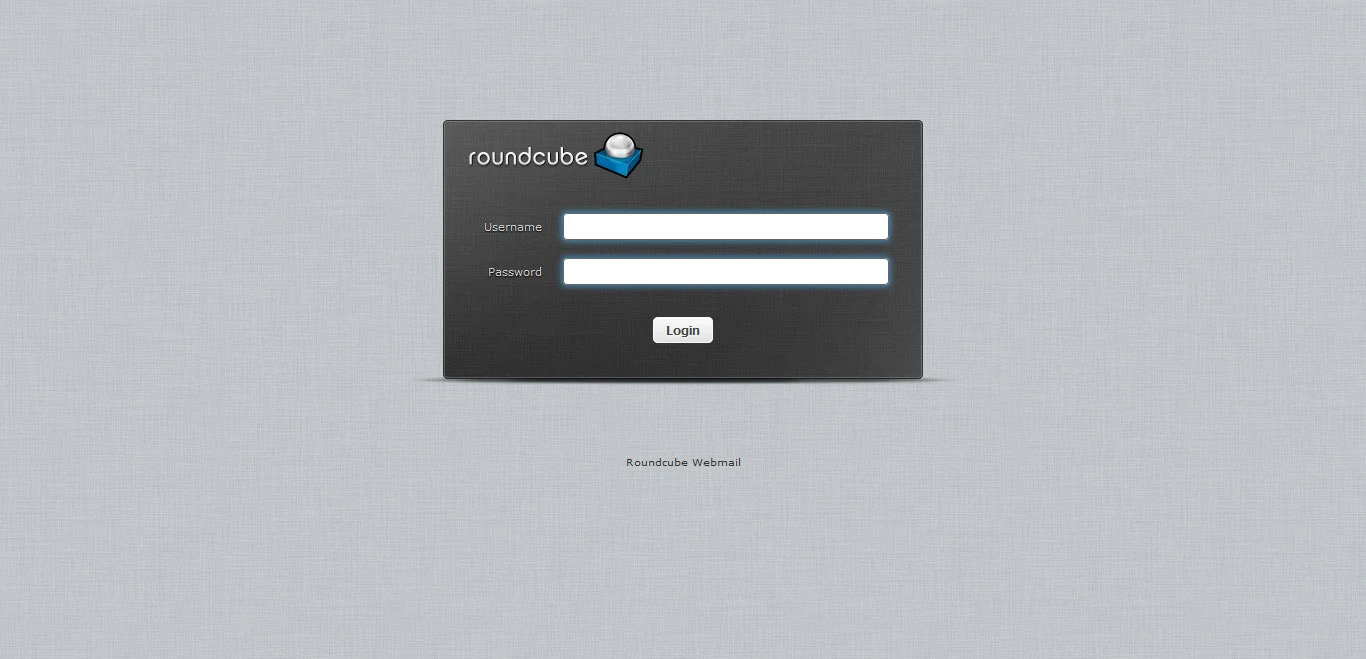
Now open "mail.test-domain.com" in any browser, and you will see the following page.
All Done! We just created an email server and webmail interface on our local Windows machine.
NOTE: If
you are still having issues, make sure you followed all the steps
carefully. After that, consider adding an exception for
hMailServer in the firewall or change the "Require SMTP Authentication in
hMailServer Administrator Panel ➞ Settings ➞ Advanced ➞ IP
Ranges ➞ My Computer".